Blog
/
Amazon Ads Bulk Operations: Manage Campaigns at Scale
Amazon Ads Bulk Operations: Manage Campaigns at Scale
Kajal Sharma

Amazon Ads Bulk Operations: How to Manage Campaigns at Scale
Key Takeaways
Amazon Ads bulk operations let you change thousands of campaign settings in one spreadsheet upload instead of clicking through the console.
Amazon retired the legacy format in late September 2023, so any guide built around a Record ID column is out of date.
Every Amazon Ads bulk operations edit follows one loop: download a fresh bulksheet, change only what you need, upload, then read the processing report.
A backup copy, a small test batch, and exact spelling protect you from costly mistakes.
Spreadsheets get risky as accounts grow. That is when automation with previews and rollback earns its place.
If you run more than a few dozen campaigns, Amazon Ads bulk operations are the fastest way to keep bids, budgets, and negatives under control. This guide covers the current process, the edits worth making first, and the point where spreadsheets stop being enough. That's when Amazon PPC software earns its place, because it acts on live data, previews changes, and rolls them back.
What Are Amazon Ads Bulk Operations?
Amazon Ads bulk operations are a spreadsheet-based method for creating, updating and archiving many campaigns in one upload. You download a bulksheet, edit rows offline, and upload the file so Amazon applies every change together. The current format covers Sponsored Products, Sponsored Brands and Sponsored Display.
Bulksheets vs. the Legacy Template
Think of the old file as a paper map and the new one as GPS. Same roads, but every row now says what it is and what you want done. Amazon deprecated legacy bulksheets on September 30, 2023.
The replacement adds Product, Entity and Operation columns, plus bulk campaign renaming. If a tutorial tells you to guard a "Record ID" column, it describes the old layout.
When to Use Bulk Operations vs. the Console, API or PPC Software
Use Amazon Ads bulk operations when you need repeatable, reviewable changes across many campaigns and can accept a manual cycle. Use the console for a handful of edits, and software when changes must happen daily. Multi-account agencies feel this limit first, because every account means another file to download, check and upload.
Option | Best for | Effort | Safety net | Watch out for |
Ads console | A few quick edits | Low | Instant visual feedback | Slow at hundreds of rows |
Bulksheets | Repeatable mass edits | Medium (spreadsheet skills) | Your own backup file | 60-day data window, stale files |
Ads API | Custom in-house tooling | High (developer time) | Whatever you build | Ongoing engineering upkeep |
PPC software | Daily, rule-based changes | Setup, then low | Varies by tool: previews, logs, rollback | Vendor fit and cost |
How to Use Amazon Ads Bulk Operations Step by Step
The process has three steps: download, edit and upload, with a report check at the end.
1. Download the Right Bulksheet
Sign in to the Amazon Ads console, open Sponsored ads, then choose Bulk operations. Pick a date range and exclude terminated campaigns or placement data if you don't need them. Bulksheet performance data covers at most 60 days. Always work from a fresh download. A file that sits for days can overwrite changes made since.
2. Edit With the Entity and Operation Columns
The Entity column tells Amazon what each row is, such as a campaign, ad group, keyword or negative keyword. The Operation column says what to do: Create, Update or Archive. A blank cell changes nothing. Edit only the cells you mean to change. Leave the ID columns alone, because changing a Campaign ID or Ad Group ID leaves Amazon unable to match the row.
3. Upload and Read the Processing Report
Return to Bulk operations, upload the saved file and wait. Processing time depends on the number of rows, and Amazon provides an error report for rows that fail. Download it, fix the flagged rows, and re-upload only those. Then spot-check a few campaigns in the console.
4.Three Bulk Edits That Save the Most Time
Amazon Ads bulk operations pay off fastest on edits you repeat every week: bids, negatives, and structure copies. Why these three? They share three traits. Each touches hundreds of rows at once. Each follows a rule, not a gut call. And each costs you money for every day you put it off.
Edits that need judgment on every row, like new ad creative or a strategy shift, stay in the console.
Edit | Why It Repeats | Why Bulk Beats the Console | Cost of Delay |
Bids | Keyword performance shifts week to week | One formula fills a whole column instead of one bid at a time | Winners stay under-bid, losers keep overspending |
Negatives | New search terms appear constantly | Filter wasted-spend terms once, upload them in one pass | Irrelevant clicks keep draining budget |
Structure copies | New ASINs, variations, and marketplaces keep arriving | Copy rows, swap ASINs and names, upload | Slower launches and inconsistent naming |
5.Update Bids With a Target ACOS Formula
A keyword's max bid equals its revenue per click multiplied by your target ACOS. Revenue per click is sales divided by clicks.
Formula - Target ACoS: Break-Even ACoS − Desired Net Margin %
Say a keyword has 40 clicks, 5 orders, and $320 in sales, and your target ACOS is 25%. Revenue per click is $8.00, so the bid is $2.00. Check it: a 12.5% conversion rate times a $64 order value gives $8.00 per click, and $2.00 divided by $8.00 is 25%.
Add a "New Bid" column, fill the formula down, then paste the values into the bid column. Set a minimum click count, such as 20, before you trust the ratio, because thin data swings wildly. Spot-check single bids with the Amazon PPC real bid calculator.
6.Add Negatives and Harvest Converting Search Terms
Pull your search term report. Add wasteful terms as negative exact keywords, with Entity set to negative keyword and Operation set to Create. For winners, create exact-match keyword rows in a manual campaign, then add the same terms as negatives in the auto campaign so the two stop competing. Our search term negation guide explains which terms qualify.
7.Copy Proven Campaign Structures to New ASINs
Duplicate the rows of a winning campaign, rename the campaign and ad group, swap the advertised product, and set Operation to Create. Names must match exactly across rows. A trailing space breaks the nesting between a campaign and its keywords.
Common Amazon Ads Bulk Operations Errors and a Safe Upload Checklist
Failed uploads usually come from formatting slips, stale files or typos, and you can prevent all three.
Error | Likely cause | Fix |
Row rejected | Match type spelled or cased wrongly (broad, phrase, exact, negativeExact, negativePhrase) | Copy values from a downloaded sheet |
Orphaned or duplicate entities | Edited ID column | Restore IDs from a fresh download |
Bid ten times too high | Misplaced decimal, such as $1.20 becoming $120 | Sort bids high to low before upload |
Changes overwritten | Stale file | Download fresh, upload the same day |
New keyword in the wrong place | Names differ by a space | Trim campaign and ad group names |
Before every upload:
Save an untouched copy first. Re-uploading the original file is the standard way to revert a mistake.
Upload a small test batch before the full file.
Sort bids ascending and descending, and scan both extremes.
Follow one campaign naming convention so filters work.
Before Prime Day or Black Friday, keep a labeled pre-event file so you can restore settings afterward.
Where Bulksheets Stop Scaling
Where Bulksheets Stop Scaling
Amazon Ads bulk operations stop scaling when the cost of a manual cycle exceeds the value of the change. Three limits show up first. Performance columns reach back only 60 days, so seasonal comparisons need a separate history source.
The download, edit and upload loop leaves bids stale between uploads. And a file can't pause ads when inventory runs out, so someone has to notice. If those limits sound familiar, it's usually the sign to move to Amazon Ads automation software - compare the best Amazon PPC software options.
Bulk Actions in Atom11 How Atom11 Handles Amazon Ads Bulk Operations
Atom11 is retail-aware Amazon ads software built by ex-Amazonians. Amazon Ads bulk operations hand you a file to manage. Atom11 puts bulk actions inside the platform, with guardrails.
Bulk Create
Build hundreds of campaigns, ad groups and targets in one pass. Add keywords and negatives in bulk too, instead of setting each one up by hand.
Bulk Edit
Change bids, budgets and states across a whole selection in a single action, at any level from campaign down to target.
Bulk Audiences
Create audiences for many campaigns in one go. Remove them, or adjust their bid adjustments, just as fast.
Preview Before It Ships
See the exact new value on every target a change touches. You catch a bad value before it goes live, not after.
Version Control
Save your bid, budget and placement modifier state before a big event like Prime Day, then roll back in one click. Nobody has to hunt for last month's spreadsheet.
Retail-Aware Rules
Pause ads when stock is low and resume them when it's replenished. Vendors can also pause ads when the Buy Box is lost. Rank-aware rules raise or lower keyword bids by search rank.
Hourly Dayparting
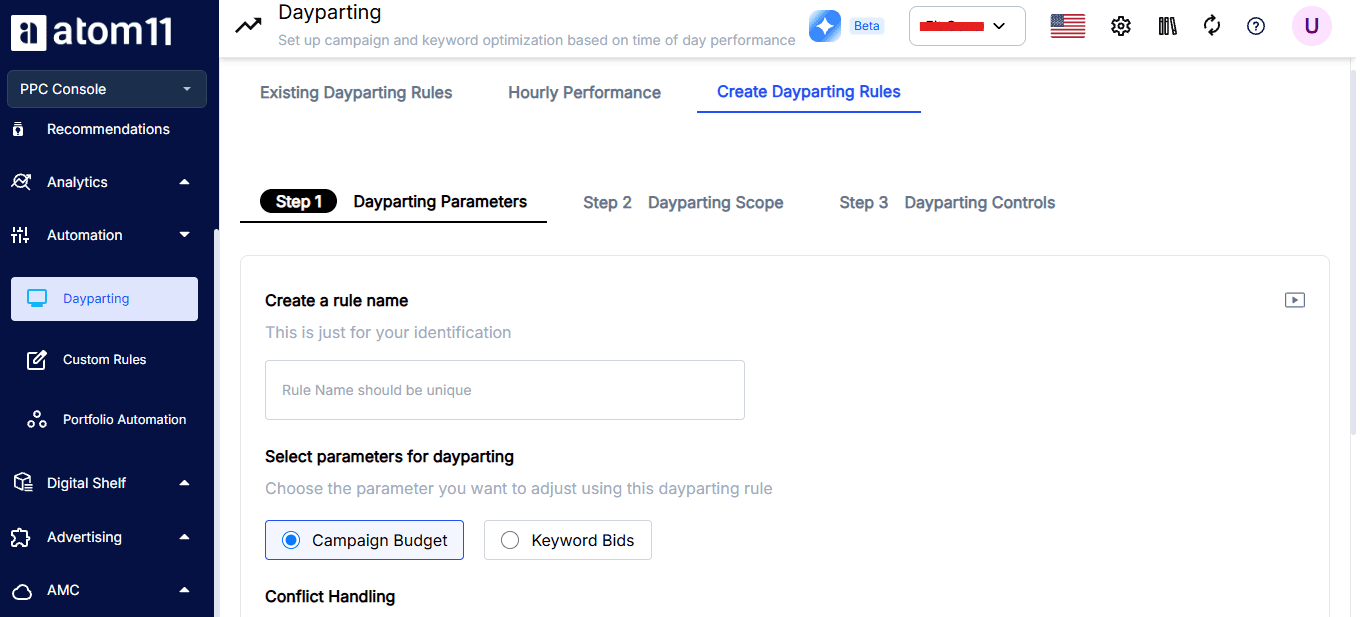
Schedule bids and budgets by hour and day of the week, using Amazon Marketing Stream data. Conflict controls decide what happens when you change a bid or budget while dayparting is live.
Performance Monitor
Every keyword keeps a record of pre- and post-automation performance. You see whether automation helped, and roll it back if it didn't.
For Example: Prime Day Prep
Prime Day is a week away. You use Bulk Create to build campaigns for your new ASINs and Bulk Audiences to attach audiences in one pass. Bulk Edit then raises bids and budgets across your top campaigns. Preview shows every new value, so you catch a $5.00 bid that should be $0.50 before it goes live.
Version Control saves a restore point. Retail-Aware Rules pause ads on low-stock ASINs, and Hourly Dayparting shifts spend to peak hours. Afterward, the Performance Monitor shows what worked, and you roll back what didn't.
More than 2,000 brands and agencies in 18+ countries run their Amazon advertising on Atom11, which handles over 2.7M bid changes a day. Explore our Amazon sponsored ads software or book a demo.
Conclusion
Amazon Ads bulk operations turn hours of clicking into a repeatable process, as long as you download fresh, edit narrowly, and keep a backup. They make it easier to create, update, and archive multiple campaigns with a single spreadsheet upload.
The basic workflow is simple: download a fresh bulksheet, make only the changes you need, upload it, and review the processing report. For common tasks such as adjusting Target ACOS bids, adding negatives, harvesting search terms, or copying campaign structures for new ASINs, bulksheets can save significant time.
However, they also have limits. You are working with only 60 days of data, bids can become stale between uploads, and bulksheets do not account for real-time factors such as stock levels or Buy Box status. That is why it is important to keep an untouched backup, test smaller batches, check your changes carefully, and save a pre-event file before Prime Day.

FAQs
What are Amazon Ads bulk operations?
Amazon Ads bulk operations are a spreadsheet-based method for creating, updating, and archiving many campaigns at once. You download a bulk sheet, edit rows offline, upload the file, and Amazon applies all changes at once instead of you editing each item in the console.
Where do I find bulk operations in Amazon Ads?
Sign in to the Amazon Ads console, open Sponsored ads, and choose Bulk operations. You can download your campaigns or a blank template there, then upload edited files from the same page. Menu labels change, so confirm them in your own account.
Which campaign types support bulksheets?
Current bulksheets cover Sponsored Products, Sponsored Brands and Sponsored Display, and Sponsored Display support arrived with the 2023 format. Coverage of newer ad formats can vary, so check Amazon's documentation for your marketplace before planning a large upload.
How long does a bulksheet upload take?
Processing time grows with row count, so a small test batch finishes faster than a full-account file. Check the status column and the error report before you edit anything else, and avoid re-uploading while a file is still processing.
Bulksheets or PPC software: which is better?
Bulksheets suit periodic, hands-on edits on modest accounts. Software fits large or fast-moving accounts that need daily rule-based changes, previews and rollback. Many teams use both: spreadsheets for restructures, software for everyday optimization.
